What do you need to use Recagn with Zoho Recruit?
You need a paid Zoho Recruit plan or the trial, a Recagn Workspace on a plan, and permission to export and import Candidates in Zoho. Zoho's plan comparison shows no custom fields on Free (read 17 Nov 2026). We tested steps 1–4 in Zoho's 15-day trial on 17 Nov 2026.
This is stage 2 to stage 5 of the candidate screening process for recruitment agencies, run from Zoho Recruit.
- Zoho Recruit: a paid plan or the trial, the Export permission (Zoho's export help), and admin access to Setup → Customization to add two fields.
- Recagn: a Workspace on a plan with New Candidates parsed left. There is nothing to install.
- A spreadsheet app, to build one three-column CSV.
We tested in Zoho Recruit's Corporate HR edition. Zoho's help documents the same Candidates, Export and Import screens for agencies on the Staffing Agency edition, which adds Clients (step 5).
How does the round trip between Zoho Recruit and Recagn work?
Five steps move one job through Recagn and back. We ran steps 1–4 in a Zoho Recruit trial on 17 Nov 2026 with made-up candidates, and the figures below are those screens.
- Send the job to Recagn and put its Apply Link in Zoho.
- Export the candidates and their CVs, and bulk-upload them to Recagn.
- Import each candidate's score and the Company Report link back.
- Move the passing candidates' stage in Zoho.
- Share the shortlist with the client.
Step 1: Send the job to Recagn and put the apply link in Zoho
Recagn reads CVs and scores answers against the role's scorecard, which Recagn calls a rubric, and it drafts the rubric from the same job description Zoho already holds. Apply Links appear only once the rubric is locked, so the order matters.
- Copy the Job Description from the Zoho Job Opening.
- In Recagn, create a Requirement and paste it. Recagn drafts the rubric and interview questions for you to review before anything goes out.
- Review the rubric, edit what's wrong, and lock it.
- Create an Apply Link. Zoho isn't one of the preset sources, so pick Careers page or type your own label, such as "Zoho Recruit".
- Paste the link on the last line of the Zoho Job Description and save.
The role's Recagn apply link sits on the last line of the Job Description.

- Job Description Copy this text into a new Requirement in Recagn, then paste the role's Recagn apply link into the description so candidates who read the job can apply in Recagn.
A candidate who applies through the link lands in Recagn, and Recagn reads the CV against the rubric. Nobody is interviewed until you invite them.
Zoho's help doesn't document a way to point a job's own apply button at an outside address, so the link goes in the description text.
Step 2: Move the candidates and their CVs into Recagn
Zoho exports a saved view of candidates, with their CV files, as one emailed ZIP. Recagn takes the unzipped PDF and Word files in one bulk upload.
- In Zoho, go to Setup → Data Administration → Export Data.
- Pick the module, the view and Attachments, as numbered in the figure.
- Open the emailed link, which Zoho keeps valid for 48 hours, and unzip the file.
- In Recagn, open Candidates → Bulk upload, choose a Pool, and select every PDF, DOCX and DOC file.
- On the Requirement, run Matching over that Pool. Recagn gives each candidate a match score out of 100. Invite the ones you want to the Interview.
Export Candidates from the job's view and tick Attachments to get the resumes too.
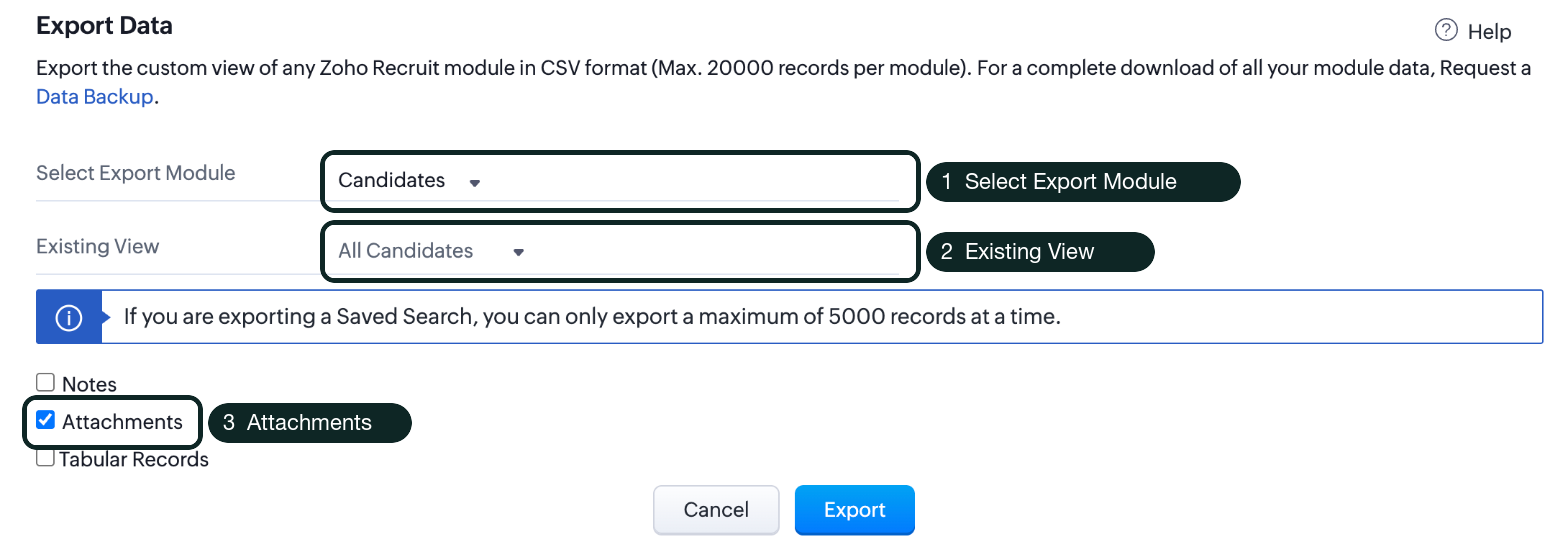
- Select Export Module Choose Candidates.
- Existing View Pick the view that holds the job's shortlist; Zoho refuses an empty view. The download link arrives by email.
- Attachments Tick it to get the resumes as a flat ZIP of the original files. Unzip it and bulk-upload the PDFs and DOCX files into Recagn.
In the trial, Zoho's export offered CSV, up to 20,000 records per module. Recagn's upload doesn't take the ZIP itself, so unzip it first. The CVs Recagn reads count against your plan's New Candidates parsed; CVs already in the Workspace don't.
Recagn does the screening. You make the calls: the match score sets the order, and you choose who is invited.
Step 3: Bring the scores and the report link back into Zoho Recruit
Two custom fields and one CSV import put each candidate's Recagn score and the Company Report link on the Zoho record, matched on Email. The import updates the candidates already in Zoho rather than adding new ones.
Make the two fields. You do this once.
- In Zoho, go to Setup → Customization → Modules → Candidates → Layouts.
- Drag in a Number field named "Screening score" and a URL field named "Screening report", then save.
A Number field for the score and a URL field for the report link.
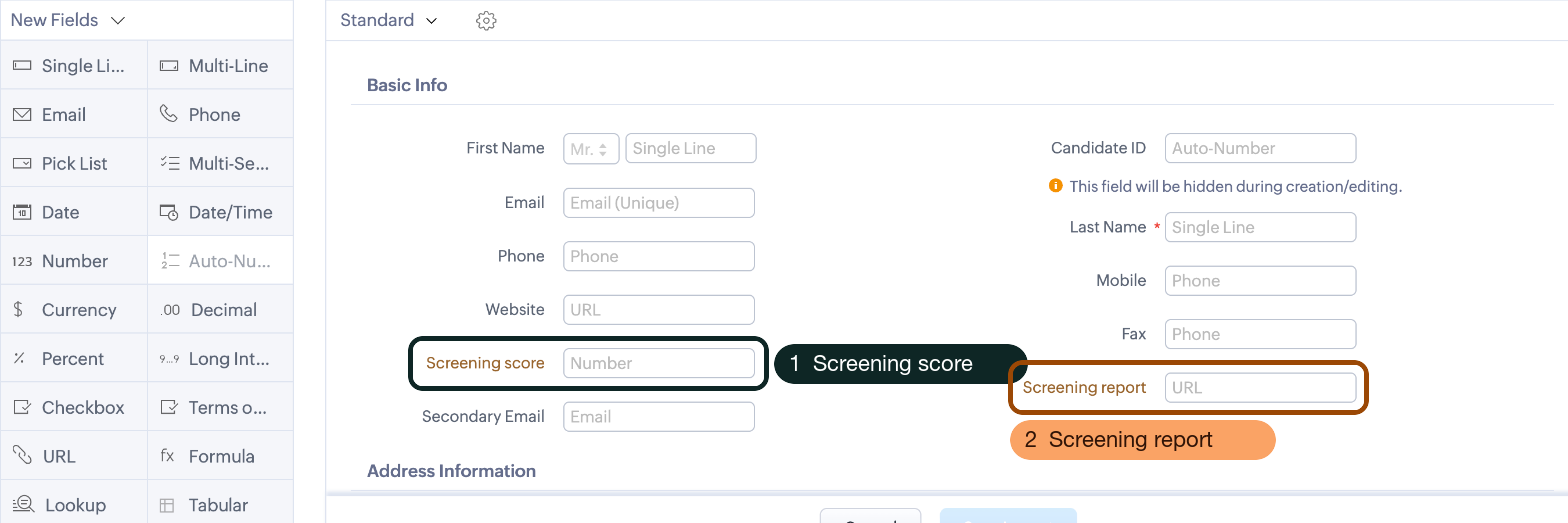
- Screening score Drag a Number field from New Fields into the layout and name it. Custom fields need a paid plan.
- Screening report Drag a URL field in and name it. It holds the Recagn Company Report link.
Build the CSV. Recagn has no results export, so you type a three-column file, such as recagn-results.csv, from Recagn's screens:
Email, as it appears in Zoho.Screening score, the candidate's CV match score out of 100. Take it from the "/ 100" figure on the candidate's match detail, not from the match list, which can show an adjusted score with a decimal.Screening report, the Company Report link from Copy link on the Requirement's Report panel. Recagn keeps one live Company Report per Requirement, so the link is the same on every row. Leave the cell empty for anyone who hasn't taken the Interview yet, because the report lists only candidates who completed it.
So the Screening score field holds the match score from the CV read. The interview scores against the rubric, and Recagn's recommendation, are in the Company Report the Screening report link opens.
Import it.
- Go to Candidates → Import → Import from Spreadsheet and choose the CSV.
- Set the three options numbered in the figure.
- Click OK on the browser alert that existing values will be overwritten.
Overwrite duplicates found by Email, and skip the CSV's empty fields.
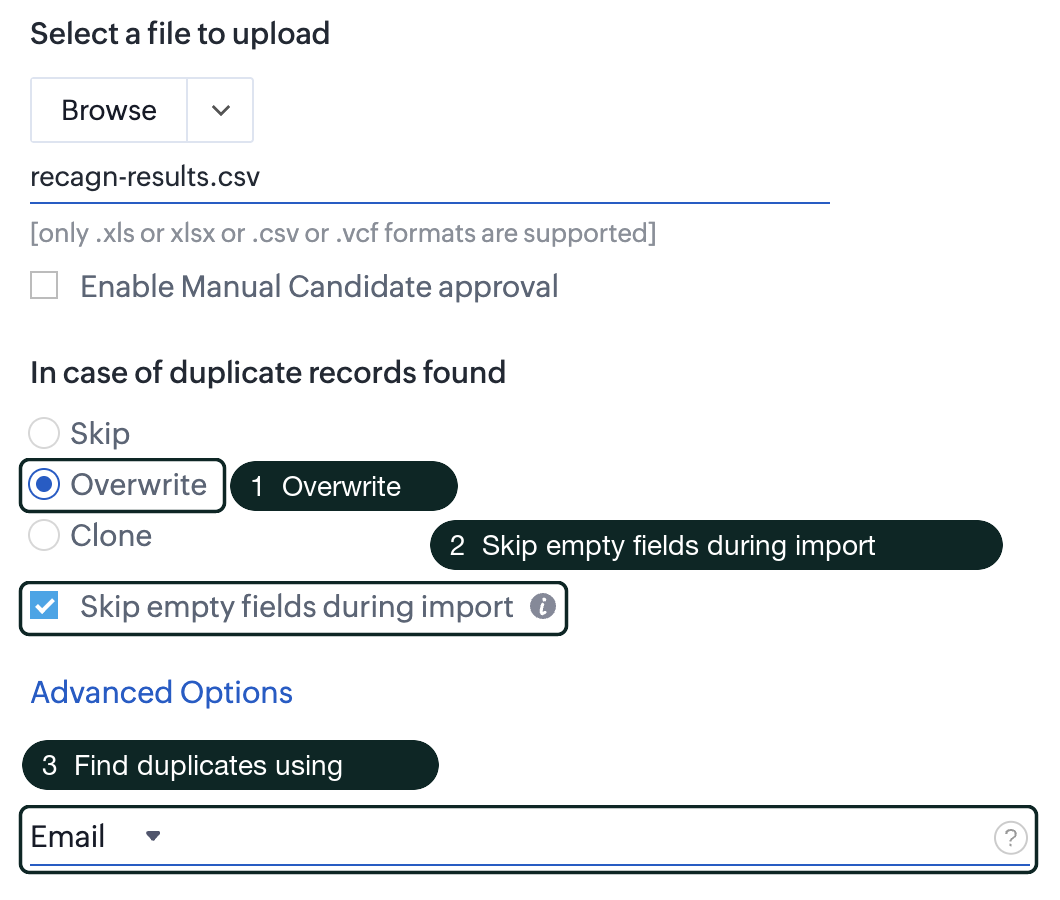
- Overwrite Updates the existing candidates instead of adding new ones.
- Skip empty fields during import Keeps fields the CSV leaves blank as they are.
- Find duplicates using Match on Email. Clicking Next shows a browser alert that existing values will be overwritten; click OK.
Skip empty fields during import matters here: for candidates who haven't been interviewed, the blank report cell leaves the Zoho field as it is instead of clearing it.
Map and finish.
- Check the mapping. In the trial, Zoho matched each CSV header to its field by name.
- Run the import and read the summary.
Email is the match key; the score and report columns map to the two new fields.
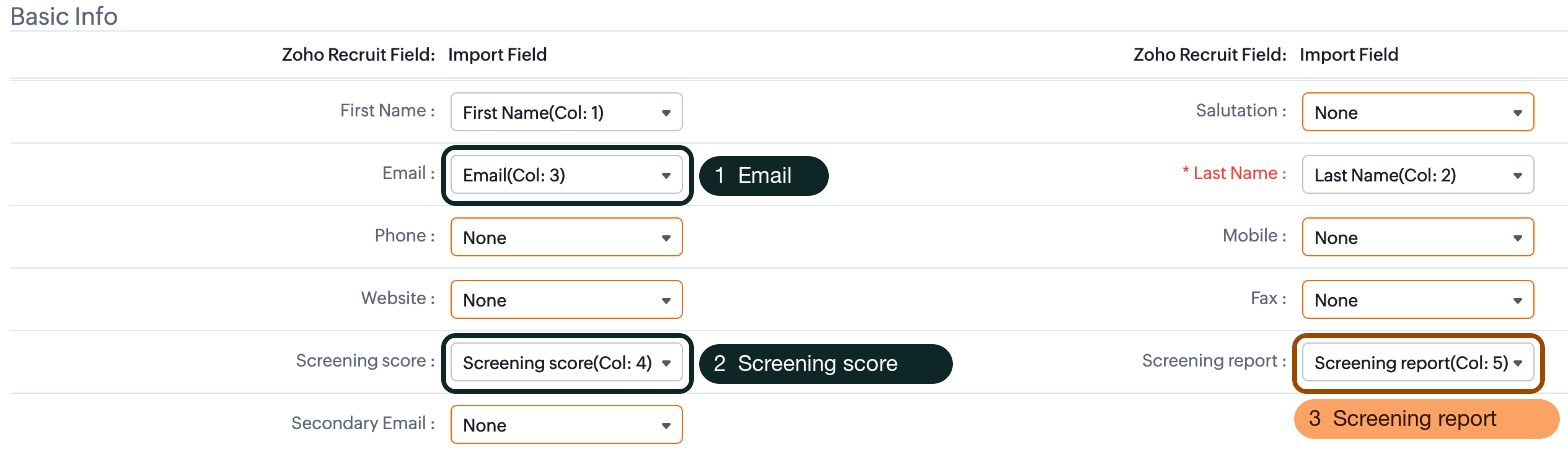
- Email The match key.
- Screening score Zoho matched the CSV header to the custom field by name.
- Screening report The Recagn Company Report link. It is the same link on every row: one report per Requirement.
Three records in the file, three updated, none added.
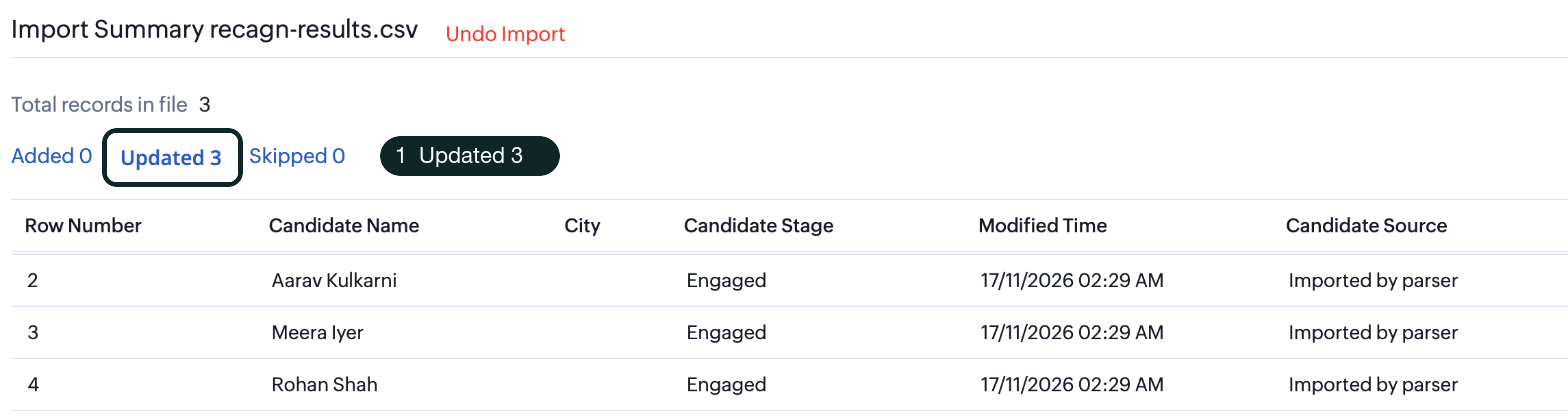
- Updated 3 The three candidates were updated, not duplicated. Undo Import reverses it.
If the mapping was wrong, Undo Import beside the summary title reverses it.
The score shows as a number and the report as a link anyone on the team can open.
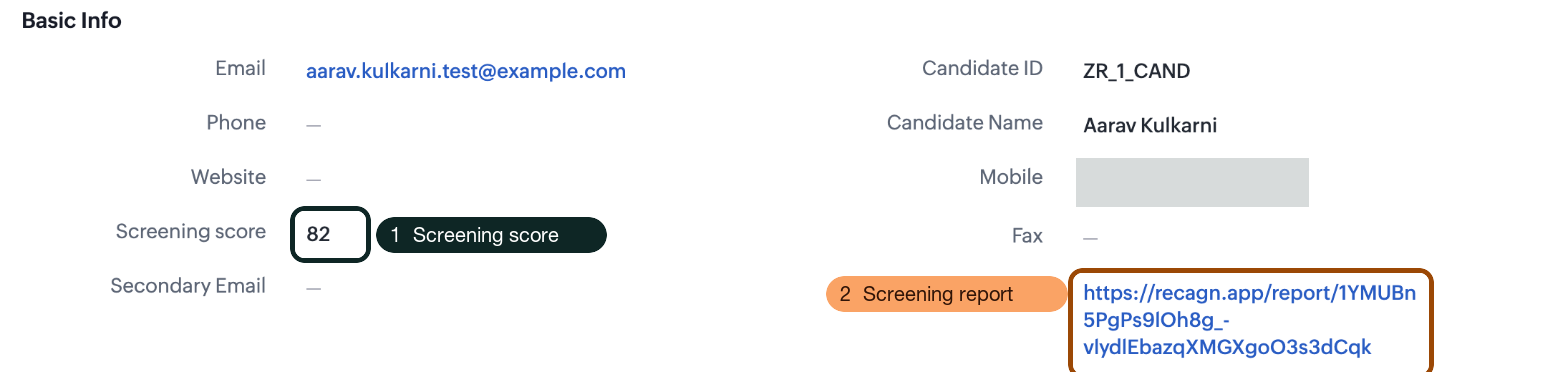
- Screening score The score from Recagn.
- Screening report A URL field renders as a link, so anyone on the team can open the Company Report.
The URL field shows as a link on the candidate record, so anyone on your team can open the Company Report from Zoho. The client opens the same link without a Recagn account.
Step 4: Move the stage in Zoho Recruit
The import can't set a candidate's application stage, so move it in the job's Applications list, several candidates at once. In the trial, the mapping offered Candidate Status but nothing for the status of an application to a job.
- Open the Job Opening → Applications.
- Tick the candidates you are moving on.
- Click Change Status, the first icon in the toolbar.
- Pick the status, add one comment, which can carry the report link, and click Update.
Select the candidates who passed, set the status, and add the report link as a comment.
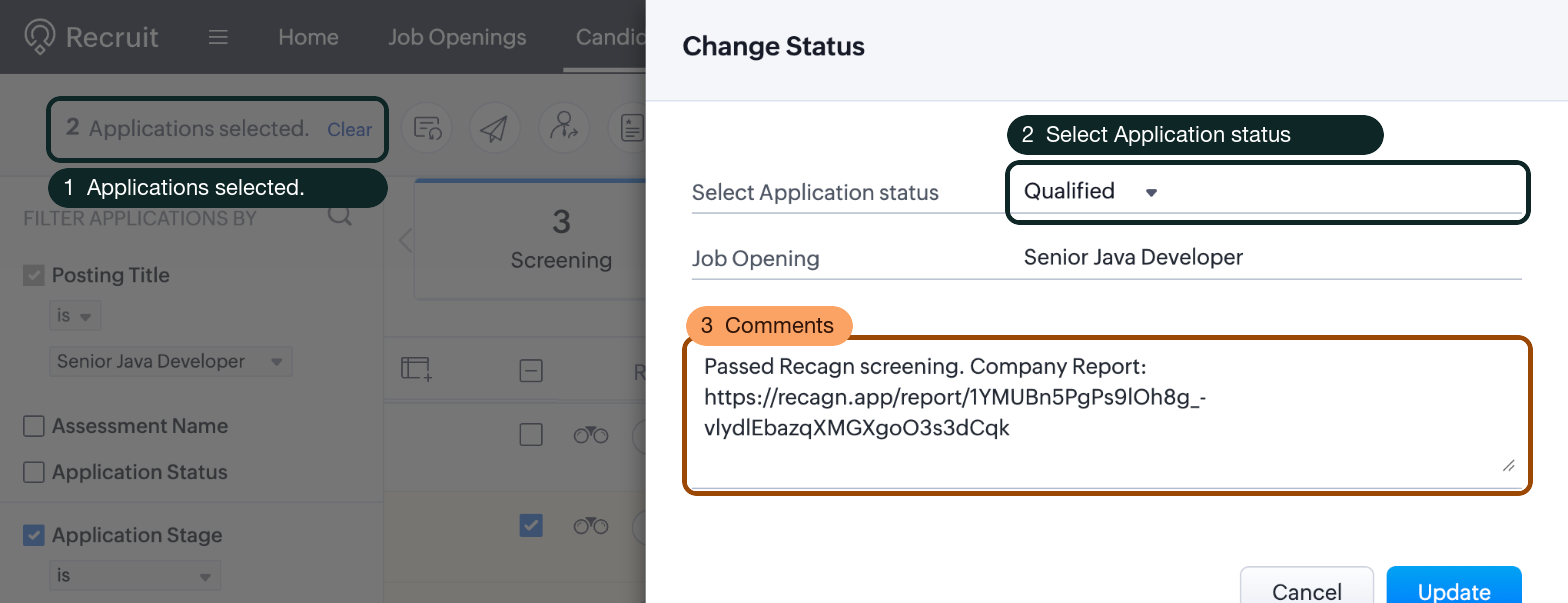
- Applications selected. Tick the candidates who passed, then click the first toolbar icon, Change Status. The import can't set the stage.
- Select Application status Choose the next status, here Qualified.
- Comments One comment goes on every selected application; it can carry the Company Report link.
Recagn recommends Qualified, Maybe or Disqualified for each candidate it interviews. The stage you set in Zoho is your call.
Step 5: Share the shortlist with the client
Send the client the Company Report link, which shows each interviewed candidate's answers and scores against the rubric. Zoho's own way of sending candidates to clients needs the Staffing Agency edition.
- On the Requirement's Report panel in Recagn, choose who appears.
- Copy the link.
- Send it to the client with your own message, or paste it into Zoho's Submit to client email.
This step has no figure: the Corporate HR edition we tested has no Clients. Zoho's plan comparison lists Submit to Client on every plan and the Client portal on Enterprise only (read 17 Nov 2026). We haven't checked whether a URL field shows in the Client portal.
What doesn't sync between Zoho Recruit and Recagn today?
Nothing moves between Zoho Recruit and Recagn on its own today: every step above is an export, an upload or an import that you run. The score in Zoho is a copy from the day you import, and the report link stops working when it expires or is replaced.
- New candidates who apply through the Apply Link land in Recagn, not Zoho, until you import them.
- Scores don't update in Zoho. Re-import the CSV after more candidates are matched or interviewed.
- The Company Report link expires after 30 days unless you set another date when you publish it, and Replace link turns the old one off. Either way, import the new link.
- Stages move by hand in Zoho (step 4). Decisions you record in Recagn don't reach Zoho.
- Results leave Recagn only through the CSV you type (step 3).
A Zoho Recruit integration is on the Recagn roadmap, where you can ask for early access.
If your agency runs the rest of its screening in Recagn's recruitment agency software, the Requirement, the Pool and the Company Report stay in one place, and Zoho Recruit stays your record.
Questions people ask
Do I have to replace Zoho Recruit to use Recagn?
No. Recagn isn't an ATS; it works alongside the one you already use. Zoho Recruit stays your record of candidates, jobs and stages, and Recagn screens, interviews and shortlists the candidates you send it.
Doesn't Zoho Recruit already have AI screening and AI interviews?
Zoho Recruit has two AI features of its own. Zia Matches grades how well a profile matches a job from 0 to 100, on the Professional plan and above, and AI Interview Insights writes transcripts and summaries of recorded video interviews, on Enterprise, People Plus and Zoho One (Zoho help pages, read 17 Nov 2026). Recagn interviews candidates by text, voice or video and scores each answer against the role's rubric.
Which Zoho Recruit plan do I need for this, and what does Recagn cost?
Any Zoho Recruit plan above Free, or the trial: the Free plan has no custom fields (Zoho plan comparison, read 17 Nov 2026). Recagn charges by plan, not per seat: every plan includes unlimited members, and each CV read and each scored Interview draws on the plan's monthly allowance (Recagn pricing).
Why is the same report link on every candidate in Zoho?
Because Recagn keeps one Company Report per Requirement, not one per candidate. The client opens one link and sees every candidate who completed the Interview, and new completions appear on the same link.